
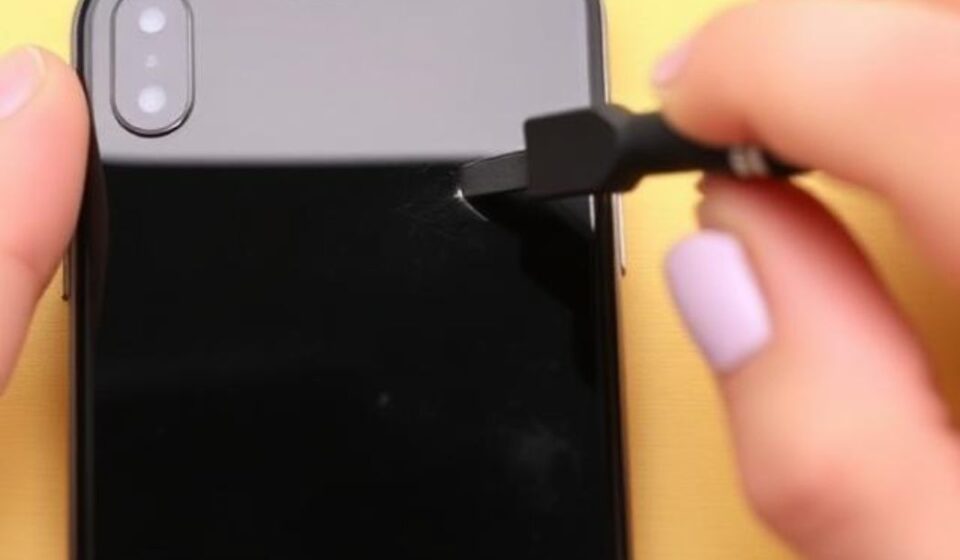

Has your iPhone XR screen started looking a little off lately? You’re definitely not alone. Many users have reported seeing strange yellow tints, washed-out colors, or unusual blobs on their iPhone XR’s Liquid Retina LCD display. But don’t worry—this is an incredibly common issue, and in many cases, it’s a simple fix that doesn’t require a trip to the repair shop.
Here is your ultimate guide to diagnosing why your screen looks discolored, how to fix it yourself, and what to do if you need professional help.
Table of Contents
ToggleCommon Symptoms of Screen Discoloration
Discoloration can show up in many ways. Here is what you might be seeing:
-
Overall Yellowish Tint: The screen looks warm or yellow even when you aren’t using the “Night Shift” mode at night.
-
Yellow Patches or Blotches: Specific areas, often near the edges, display a lighter or yellow hue.
-
Blue or Purple Tint: Colors look unnaturally cool, or the screen turns blue when unlocking.
-
Screen Burn-in or Image Persistence: A faint “ghost” of a previous image (like a keyboard or status bar) lingers on the screen.
-
Flickering or White/Green Lines: The screen starts shaking, flickering, or displays random vertical lines.
Step 1: Diagnosing the Root Cause
Before you try to fix the issue, it helps to know what is causing it. Discoloration generally falls into two categories:
Software vs. Hardware
-
Software issues are typically system-wide settings (like True Tone) or temporary glitches. You can usually fix these yourself.
-
Hardware issues are physical problems with the LCD panel itself, often caused by damage, aging, or manufacturing.
Here is a breakdown of common signs:
| Cause / Symptom | What to Look For |
|---|---|
| Software-Related | Screen is entirely yellow (too warm), colors are inverted, or a recent update just occurred. |
| Hardware-Related | Specific blotches of color, dead pixels that never change, flickering, screen burn-in images, or physical cracks. |
| Physical Damage | A crack, water seepage, or color changes right after a repair like a battery replacement. |
| LCD Aging | Slight yellowing at the edges that increases over time. This is a chemical sign of aging LCD panels. |
| Manufacturing (New Units) | Yellow patches that appear right out of the box—often because the screen adhesive hasn’t fully dried yet. |
Step 2: The Ultimate Troubleshooting Guide
Follow these steps in order. Start with the free, easy software fixes, and work your way down to hardware solutions.
The Software Fixes (The Easy Stuff)
Most of the time, a yellowish or off-color screen is caused by a toggle you accidentally turned on.
-
Restart Your iPhone: This sounds obvious, but a simple restart clears temporary memory and can fix many display glitches instantly.
-
Disable “True Tone”: This feature adjusts your screen’s color to match the lighting around you. If you are in a warm-light room, your screen will look yellow, which is normal behavior.
-
How to fix it: Go to Settings > Display & Brightness and toggle True Tone OFF.
-
-
Check Night Shift: This reduces blue light after sunset, making the screen deliberately warmer.
-
How to fix it: Go to Settings > Display & Brightness > Night Shift and set it to Off or “Manually Enable Until Tomorrow.”
-
-
Review Color Filters: This Accessibility feature can distort colors if enabled by accident.
-
How to fix it: Go to Settings > Accessibility > Display & Text Size > Color Filters. Make sure the toggle is OFF.
-
-
Reset All Settings: If nothing else works, reset your display configurations without erasing your data.
-
How to fix it: Go to Settings > General > Transfer or Reset iPhone > Reset > Reset All Settings.
-
The Hardware Check (Physical Inspection)
If the software steps didn’t help, the issue might be physical:
-
Check Your Screen Protector & Case: Some bulky cases or tight-fitting screen protectors can press against the LCD, causing color distortion or rainbow effects. Try removing both to see if the screen goes back to normal.
-
Look for Physical Damage: Check for hairline cracks, impact marks on the frame, or signs of moisture (look in the SIM card slot for a red Liquid Contact Indicator).
-
Observe the Screen Behavior:
-
Burn-in/Image Persistence: This is rare on LCDs like the XR, but if an image is “stuck,” you can try displaying a full white screen for a period to try and “wash” the image away. However, if it persists, it is likely permanent pixel aging.
-
Flickering/Lines/Blotches: Rapid changes, white/gray streaks, or growing spots usually indicate a loose display cable inside or a dying backlight. A “black spot” that grows like an oil spill is a classic sign of a cracked LCD panel letting air in.
-
Moisture Damage: LCDs are not fully sealed like OLEDs. If discoloration appeared after rain or a wet environment, moisture may have seeped into the backlight.
-
Step 3: DIY vs. Professional Repair Costs
If your screen is physically damaged or the LCD is failing, a repair is necessary. Here’s what you can expect to pay.
| Repair Option | Estimated Cost (USD) | Pros | Cons |
|---|---|---|---|
| Apple (Out of Warranty) | ~150−150−200 | Guaranteed genuine Apple part; official repair with warranty | Most expensive option |
| Apple (w/ AppleCare+) As low as 29∗∗(deductible)∗∗29∗∗(deductible)∗∗188 (if using AppleCare+ screen repair fee) | Official repair with negligible cost | Requires you to have purchased AppleCare+ | |
| Third-Party Repair (Good Quality) | ~80−80−120 | Cheaper than Apple; fast service (often 30 min) | Risk of non-genuine parts; may void remaining Apple warranty |
| DIY Repair Kit | ~50−50−90 | Cheapest option; you control the quality | Very high risk, can damage phone, no support |
Important Note: Starting with iOS 18, Apple has started “locking” certain serialized parts like screens to the original owner’s Apple Account. While you can still replace the screen, you may lose functionality like True Tone unless you use an Apple genuine part or run a special software calibration.
Step 4: Warranty & Prevention
Before spending any money, check your coverage.
-
Standard Warranty (1 Year): If your discoloration is a manufacturing defect (e.g., yellow adhesive from the factory, dead pixels, or a display fault not caused by you), Apple will fix it for free.
-
AppleCare+: If you have AppleCare+, screen repairs cost a low service fee ($29 for screen damage).
-
Physical / Liquid Damage: Is never covered. You will have to pay the out-of-warranty fee.
To protect your screen in the future:
-
Use a quality screen protector and a protective case that doesn’t pinch the screen.
-
Keep your iPhone away from extreme heat (like on a car dashboard) to prevent thermal damage.
-
Avoid exposing it to high-moisture areas (steamy bathrooms, heavy rain).
-
Don’t press hard on the screen with sharp objects.
Final Thoughts
While an off-color screen is annoying, the good news is that your iPhone XR is likely just displaying a software bug or a minor physical quirk. By following the steps above, you can usually fix the issue for free in just a few minutes. However, if you see flickering, dead pixels, or black spots, it is likely time to consider a hardware replacement.
Have you tried any of these steps? Let me know in the comments which fix worked for your iPhone XR!

admin
M Umer Abbasi is a luxury lifestyle journalist and editorial curator specializing in haute horology, passion investments, and avant-garde design. With an eye for flawless craftsmanship and heritage storytelling, he deconstructs the world of high-ticket assets—from secondary watch market trends to the evolution of bespoke tailoring. His work focuses on shifting the luxury narrative away from fleeting trends and toward timeless design, raw materials, and true artisanship.