
Skip to content
-
Subscribe to our newsletter & never miss our best posts. Subscribe Now!
Bechtold RE Bechtold RE

My Blog

Bechtold RE Bechtold RE

My Blog

  • Blog
    • Education
    • Travel
  • Business
    • Finance
    • Technology
    • Crypto
  • Health
    • Fitness
    • Lifestyle
  • Fashion
    • Entertainment
  • Contact
  • Blog
    • Education
    • Travel
  • Business
    • Finance
    • Technology
    • Crypto
  • Health
    • Fitness
    • Lifestyle
  • Fashion
    • Entertainment
  • Contact
Bechtold RE Bechtold RE

My Blog

Bechtold RE Bechtold RE

My Blog

  • Blog
    • Education
    • Travel
  • Business
    • Finance
    • Technology
    • Crypto
  • Health
    • Fitness
    • Lifestyle
  • Fashion
    • Entertainment
  • Contact
  • Blog
    • Education
    • Travel
  • Business
    • Finance
    • Technology
    • Crypto
  • Health
    • Fitness
    • Lifestyle
  • Fashion
    • Entertainment
  • Contact
Home/Blog/Mastering the Screen: 15 Essential Video Conference Tips for Professional Success
video conference tips
Blog

Mastering the Screen: 15 Essential Video Conference Tips for Professional Success

By admin
March 9, 2026 8 Min Read
0

Video Conference Tips: In today’s hybrid world, the video conference has replaced the boardroom. Whether you are pitching a client, managing a team, or attending a job interview, your performance on camera is often as important as your performance in person.

However, we have all been in “that meeting.” The one where the audio echoes, someone forgets they are on mute, or the presenter’s face is shrouded in shadow. To ensure you are remembered for your professionalism rather than your technical difficulties, we have compiled the ultimate guide to video conferencing.

Here are 15 actionable tips to help you look sharp, sound clear, and communicate effectively on your next video call.

I. The Pre-Meeting Setup: Preparing for Success

1. Test Your Technology (The “Pre-Flight” Check)

Never join a meeting hoping that your mic and camera work. Log into the platform 5 minutes early to check your audio and video. Ensure your microphone isn’t picking up background static and that your camera is recognized by the software.

2. Own Your Lighting

Lighting is the difference between looking professional and looking like a witness in a true-crime documentary.

  • Do: Sit facing a window or place a lamp behind your monitor to illuminate your face.

  • Don’t: Sit with a bright window behind you. This turns you into a silhouette.

3. Curate Your Background

Your background tells a story about you. It should tell a story of professionalism.

  • Option A: A clean, tidy room with a bookshelf or simple art.

  • Option B: A branded virtual background from your company.

  • Avoid: Cluttered shelves, open doors where people walk by, or overly busy virtual backgrounds that distort when you move.

4. The Eye Level Rule

Position your camera at eye level or slightly above. If your camera is too low, attendees will be staring up your nose. If it’s too high, you look distant.

  • Pro Tip: If you are on a laptop, stack it on a few books to raise it to the correct height.

II. Audio & Visual: The Technical Essentials

5. Invest in Audio (Even a Little Goes a Long Way)

Laptop microphones are designed to pick up sound from across the room, including the typing and the air conditioner. An external USB mic or even a simple pair of wired earbuds with a mic will drastically improve how you are heard.

6. Mute is Your Best Friend

Make it a habit to mute yourself immediately when you are not speaking. This filters out the dog barks, the keyboard clicks, and the “honey, where are my keys?” moments. Just remember to unmute when it’s your turn to talk.

7. Lock Down Your Screen Sharing

Screen sharing can be a minefield.

  • Close Tabs: Close any unrelated browser tabs, emails, or messages.

  • Clean Desktop: Ensure your desktop doesn’t have personal files or inappropriate wallpapers.

  • Practice: If you are presenting slides, practice the transition so you don’t accidentally share the wrong window.

III. On-Camera Presence & Body Language

8. Look at the Camera, Not the Screen

It feels natural to look at the faces on your screen, but to the other participants, it looks like you are looking away from them. To create “eye contact,” you must look directly into the camera lens.

  • Tip: Put a small sticky note with a smiley face right next to your camera lens to remind yourself to look there.

9. Slow Down and Enunciate

Video calls often have a slight delay. Speak slower and more deliberately than you would in person. Pause between sentences to give others a chance to jump in without talking over you.

10. Sit Still and Use Hand Gestures

Movement attracts the eye. However, fidgeting is distracting. Sit upright in a stable chair. Use hand gestures within the frame of the camera to emphasize points, but try to minimize rocking or swiveling.

IV. Meeting Etiquette & Flow

11. The “Five-Minute Rule”

If you are the host, start on time. If you are an attendee, join on time. However, if you are simply dropping in to observe, it is often polite to wait in the lobby until the host lets you in, rather than bursting into an ongoing private conversation.

12. Introduce Yourself Before Speaking

In larger meetings where not everyone knows each other, start your contribution by stating your name. Instead of “I think we should try X,” say “Hi, this is Sarah from Marketing. I think we should try X.”

13. Combat Meeting Fatigue

“Zoom fatigue” is real. If you are in back-to-back calls, try to turn your camera off for a minute or two when you aren’t speaking. As a host, consider implementing “no-meeting blocks” or scheduling calls for 25 or 50 minutes instead of 30 or 60 to give people a break.

V. The Post-Meeting Wrap Up

14. Summarize Actions

Before everyone logs off, verbally summarize the key takeaways. “Great meeting, everyone. Just to confirm, John will send the designs by Friday, and I will update the client on Monday.”

15. Follow Up with an Email

A quick recap email with bullet points of the decisions made and the action items assigned ensures that everyone is on the same page and provides a written record of the meeting.

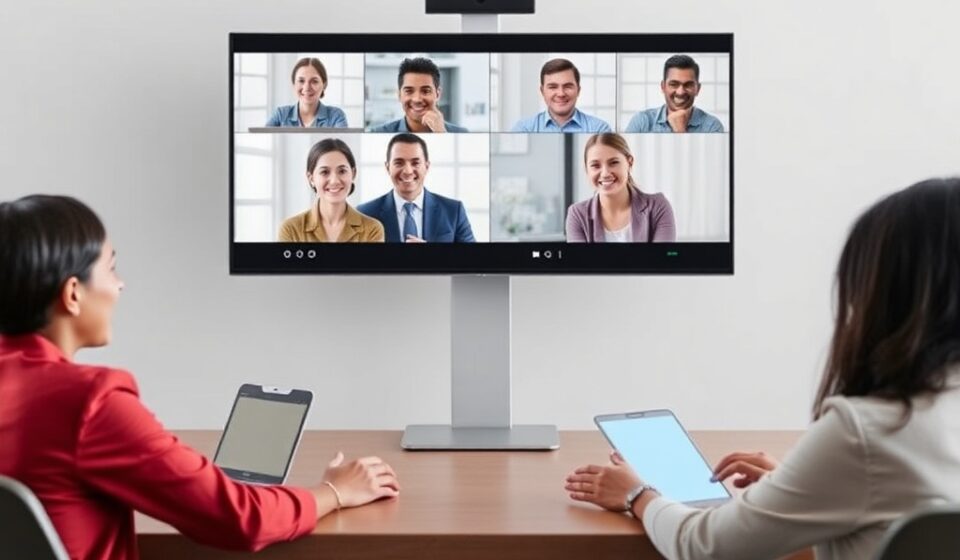
Optimize Your Video Setup for Success

By implementing these tips, you will not only communicate more effectively but also build trust and authority with your colleagues and clients. In the digital age, your ability to command a virtual room is a career-defining skill.

Which of these tips will you try on your next call? Let us know in the comments below!

Video Conference Tips: FAQ & Detailed Deep Dive

Even with the best tips, technical glitches and nuanced etiquette questions always arise. Below, we answer the most frequently asked questions about video conferencing and provide advanced insights to help you troubleshoot common issues.

Frequently Asked Questions

Q1: What is the best background for a professional video call?

The Answer: The “best” background depends on your industry, but the golden rule is “uncluttered and neutral.”

  • For Formal/Client Meetings: A plain wall, a bookshelf, or a tasteful piece of art is safest. Avoid busy patterns.

  • For Creative Fields: A more personalized background (plants, unique decor, art) can show personality, but ensure it looks intentionally styled, not messy.

  • Virtual Backgrounds: Use these with caution. While great for privacy, they can glitch (especially if you move fast or have flyaway hair). If you use one, ensure it is high-resolution and not overly distracting (avoid spinning logos or flashing text).

Q2: Why do I sound “robotic” or echo?

The Answer: Robotic/echoing audio is almost always a hardware or settings conflict.

  1. Double Audio: Are you wearing Bluetooth headphones connected to your computer, but the computer is also trying to use the built-in mic? Go to your sound settings and ensure only ONE input and ONE output device is active.

  2. Distance: If you are too far from the mic, noise-canceling algorithms struggle to isolate your voice, creating a “gated” robotic sound.

  3. Bandwidth: Poor internet can cause packet loss, making your voice sound choppy. Try turning off your video temporarily to see if the audio clears up.

Q3: Should I keep my camera on all the time?

The Answer: This is the modern etiquette dilemma.

  • Hosts/Leaders: Generally, yes. It shows engagement and respect for the attendees. If you turn your camera off, it signals you are multitasking.

  • Attendees: Best practice is to have it on for the majority of the meeting. However, it is becoming increasingly acceptable to turn your camera off briefly to manage a crying child, take a sip of water without being watched, or if you have a poor internet connection. If you are feeling unwell but still able to work, turning the camera off is polite so you don’t distract others with constant sniffling.

Q4: How do I handle someone who forgets they are on mute?

The Answer: Be patient and non-confrontational.

  • The “Hand Raise”: Use the physical or digital “raise hand” feature to get their attention without interrupting the flow.

  • The Chat Message: Send a private chat: “Hey John, you’re on mute.” or a public chat: “John, we can’t hear you, check your mute button.”

  • Verbal Cue: If you are the host, you can gently say, “I think we lost John there for a second. John, were you trying to speak?”

Q5: How do I present slides without looking like I’m reading?

The Answer: The “Presenter View” is your secret weapon.
Most presentation software (PowerPoint, Google Slides, Keynote) has a “Presenter View” mode.

  • What it does: It shows your slides to the audience, but on your screen, you can see your notes, a timer, and the next slide coming up.

  • The Tip: Share your screen, but make sure you select the window containing the slide show, not the window containing your notes. This allows you to glance at your notes on your laptop while maintaining eye contact with the camera.

Q6: Is it rude to eat during a video call?

The Answer: Generally, yes—with one exception.

  • The Exception: A designated “working lunch” or “coffee chat” where the host explicitly states, “Feel free to eat, we are all multitasking.”

  • The Rule: If it is a standard meeting, avoid eating. Chewing is amplified by microphones and visually distracting. Sipping water or coffee is perfectly fine, just try to mute your audio while you swallow!

Detailed Deep Dive: Advanced Video Conferencing Strategies

Beyond the basics, mastering the psychology and technical nuance of video calls can set you apart.

1. The Psychology of “Reaction Time”

In person, we rely on micro-expressions and small nods to know when it’s our turn to speak. On video, lag and the lack of peripheral vision make this hard.

  • The Strategy: When you want to signal you are listening, exaggerate your nods slightly. When you want to speak, use a physical cue like leaning forward toward the camera or using the “raise hand” feature. This prevents the awkward “you go—no you go” dance.

2. Mastering the “Grid View” for Presentations

When presenting to a large group, it can be terrifying to see a grid of faces staring at you. However, looking at the grid can help you “read the room.”

  • The Strategy: Glance at the grid every 30-60 seconds. Are people frowning? Pause and ask, “Does that make sense?” Are people looking down? Speed up your delivery. The grid is your real-time feedback mechanism.

3. Advanced Audio: The “Mic Muff” Trick

If you don’t have a professional microphone but need to sound professional (e.g., for a recorded webinar or a high-stakes pitch), you can improve your built-in laptop mic quality with a simple trick.

  • The Strategy: Take a thick sock or a beanie and drape it over the edge of your laptop where the mic is located. This acts as a poor man’s wind muff (like a deadcat for a camera mic). It reduces plosives (the “p” and “b” sounds that pop) and echo, instantly warming up your sound.

4. The “Narrative Bridge” for Technical Difficulties

Technology fails. It’s a fact of life. How you handle it defines your professionalism.

  • Don’t: Just freeze and say “Uh, my computer is broken.”

  • Do: Use a narrative bridge. Say: “It looks like I’m having a brief connectivity issue. Give me one moment while I re-establish a stable connection.”
    This tells people you are in control, you are aware of the problem, and you are fixing it, rather than leaving them wondering if you just abandoned the call.

5. Post-Meeting Analytics (For Sales & HR Pros)

If you use platforms like Zoom or Teams for sales pitches or interviews, don’t ignore the data.

  • Engagement Scores: Some platforms offer analytics showing who attended, for how long, and if they were active in the window.

  • Recording Review: If you record your calls (with permission), watch them back occasionally. Don’t just listen to the words; look at yourself. Do you look engaged? Do you gesture too wildly? Do you look away too often? Self-review is the fastest path to improvement.

Tags:

interview tips video conferencetips for successfully setting up a video conferencetips for video conference from homevideo conference tips
Author

admin

Follow Me
Other Articles
Previous

Fanquer: The New Concept Defining Next-Gen Internet Engagement

Next

Advent Calendar: History, Trends, and Top Picks for 2024

No Comment! Be the first one.

Leave a Reply Cancel reply

Your email address will not be published. Required fields are marked *

Recent Posts

  • McDVoice: How McDonald’s Is Using AI to Revolutionize the Drive-Thru Experience
  • Air Force Academy Civilian Faculty Resignations: A Crisis Unfolds
  • The Ultimate Guide to the WakeID Portal: Your Gateway to WCPSS Digital Learning
  • Masago: The Tiny Orange Pearls That Elevate Sushi and Boost Nutrition
  • Speed Queen Washer: Is the “King of Laundry” Worth the Hype (and the Price)?

Categories

  • beauty
  • Blog
  • Business
  • digital
  • Entertainment
  • Fashion
  • Finance
  • Fitness
  • food
  • games
  • movies
  • News
Hey, I’m Alex. I build frontend experiences and dive into tech, business, and wellness.

Recent Posts

  • twizchat com
    Twizchat com – A Complete Guide to the Real-Time Chat Platform
    by admin
    February 12, 2026
  • Braves Marcell Ozuna Waiver Candidate
    Braves Marcell Ozuna Waiver Candidate: What It Means for Atlanta
    by admin
    February 12, 2026
  • tech giants envision future beyond smartphones
    Tech Giants Envision a Future Beyond Smartphones
    by admin
    February 12, 2026

Search...

bechtoldr.com was established to provide a centralized "hub" (The Bechtold R…) for research, resources, and results. What began as a personal initiative to document professional milestones has evolved into a comprehensive resource for those who value depth over headlines.

Latest Posts

  • Yürkiyr — Digital Innovation for Growth
    Innovation in the digital era is no longer optional —… Read more: Yürkiyr — Digital Innovation for Growth
  • Why Candizi is Taking the Wellness World by Storm
    In today’s fast-evolving wellness industry, new brands appear every day—but… Read more: Why Candizi is Taking the Wellness World by Storm
  • Whatsontech: Your Ultimate Guide to the Digital Frontier
    In an era where technology evolves at the speed of… Read more: Whatsontech: Your Ultimate Guide to the Digital Frontier

Pages

  • About
  • Contact
  • Stories
  • Shop
  • Typography
  • Terms and conditions

Contact

Email

fabulaes2@gmail.com

Location

Pakistan

Copyright 2026 — Bechtold RE. All rights reserved.